Automate form creation with inserting fields from Odoo in templates

Work with fillable templates in Odoo using Euro-Office. Create templates based on the data and fields available in Odoo, fill them out and print with several clicks.

Edit the existing templates

Please note: Euro-Office demo templates will only be added to the Odoo modules that are already installed. That's why we strongly recommend installing Euro-Office Templates after installing other Odoo modules such as CRM, Sales, Calendar, etc.

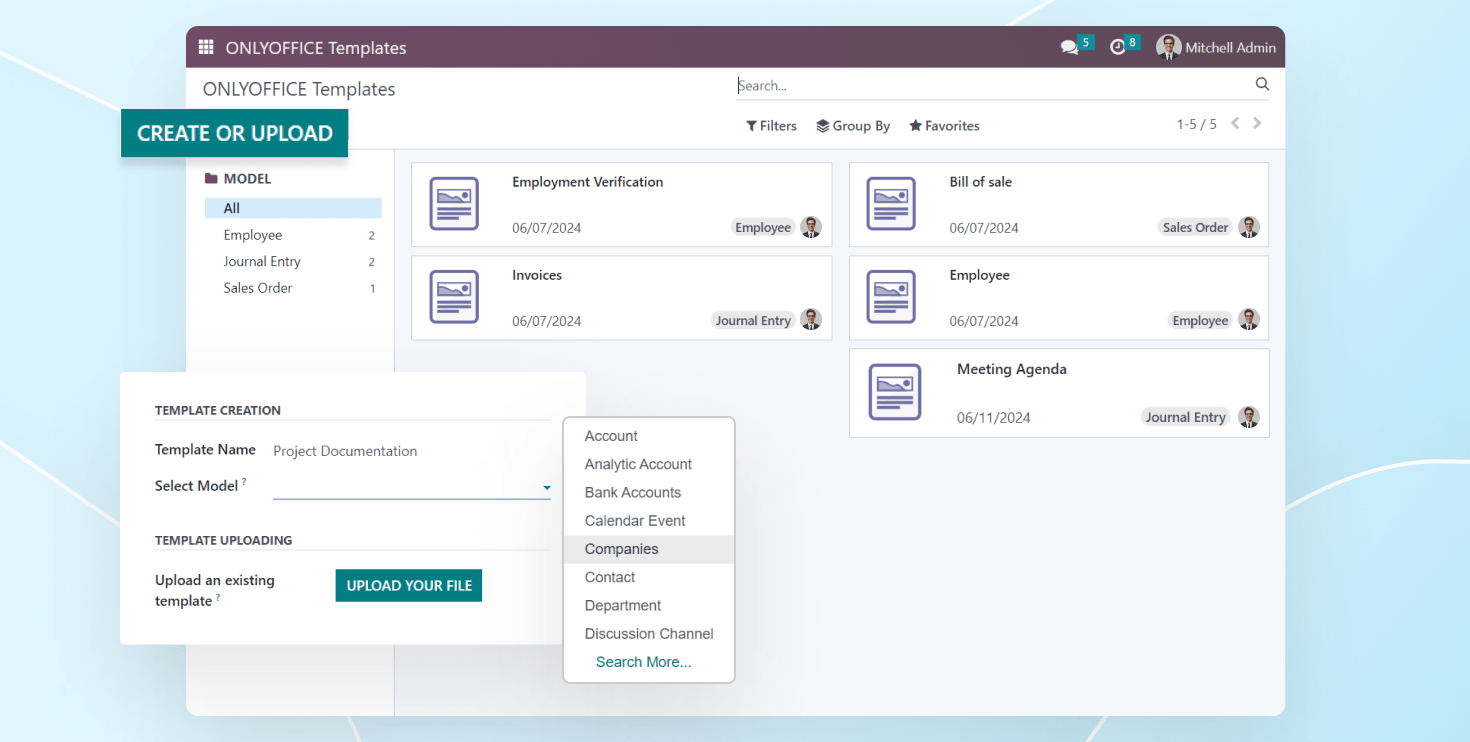
Launch the Euro-Office Templates app to open the page with the existing form templates. Each template has a tag indicating which Odoo module the template was created for.

When you click the Edit button in the file context menu, a form template will open in the Euro-Office editor. The left panel dynamically displays the fields from Odoo that can be linked to the Euro-Office form fields. The Odoo field ID is written in the Key field of the editor in the right panel.

Create new templates

To create a new template, click the Create&Upload button. In the pop-up window, specify the template name and select the Odoo module to which the template belongs.

You can upload any existing form template from your local drive (using the Upload your file button), or save a new blank template (using the Create button in the upper right corner).

Work with ready templates

Several standard templates are available when installing the Euro-Office Templates app, but certain Odoo modules must be installed first. Without these modules, the templates won't appear in the Euro-Office Templates module. After installing the required modules, you can export templates by navigating to Settings -> Euro-Office -> Manage Templates. Select the templates you want in the pop-up window and click Export to add them to the Euro-Office Templates module.

Next, a window appears with a list of templates available for this section. Select the required template so that it is filled with the data taken from the linked Odoo page (deal, employee card, etc.).

You can also preview the form template a user wants to fill out by clicking the Preview button in the form templates list. This will display a preview of the template, but no data from Odoo will be included at this stage.

To print multiple records using a template, select the desired items in the list view, then click Action -> Print with Euro-Office. In the pop-up window, click Print, and a ZIP file containing the filled PDFs will be downloaded to your device.

Access rights

There are two types of roles for this app:

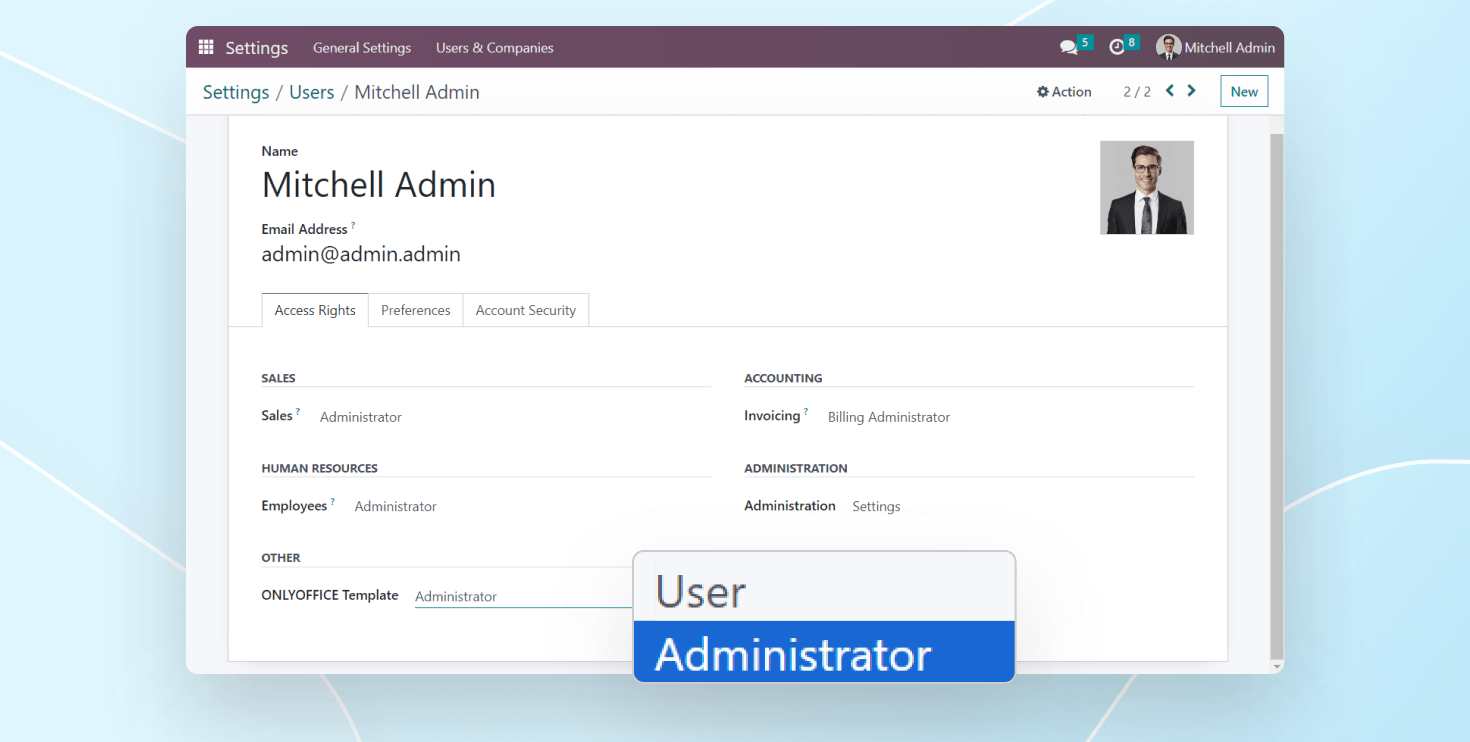
  • User: can print templates and open them for viewing. Users cannot create new templates and cannot edit the current ones.
  • Administrator: can open, create, edit and print templates.

The role type is specified in the user profile. By default, all users are assigned the User role.